
LION & LATCH
Chemical Hygiene Plan
A Chemical Hygiene Plan (CHP) is required per OSHA’s Occupational Exposure to Hazardous Chemicals in Laboratories standard (29 CFR 1910.1450) and Columbia University policy. The CHP provides essential information on prevention of potential exposures to hazardous materials and physical hazards in the laboratory. Columbia University has developed a Chemical Hygiene Plan to provide an overview of information about the use of hazardous materials in research laboratories, their hazards, warning signs, control measures, safety training to minimize exposure and waste management.
The University’s CHP is managed by the Director of Occupational Health & Safety and can be found on the EH&S website.
Columbia University Chemical Hygiene Plan
The Laboratory Assessment Tool and Chemical Hygiene Plan (LATCH) is your laboratory-specific complement to the Columbia University Chemical Hygiene Plan. The LATCH identifies laboratory tasks and indicates the corresponding appropriate administrative and engineering controls, safety training, and personal protective equipment (PPE) needed to reduce potential exposures.
The LATCH is managed and maintained by the each PI and/or laboratory. EH&S has developed a comprehensive electronic database, the Laboratory Information Online Network (the LION) to manage the creation and maintenance of the LATCH. The LATCH also includes information on staff training, emergency equipment and other laboratory assets and laboratory spaces under the management of each PI.
LION System Overview & Guides:
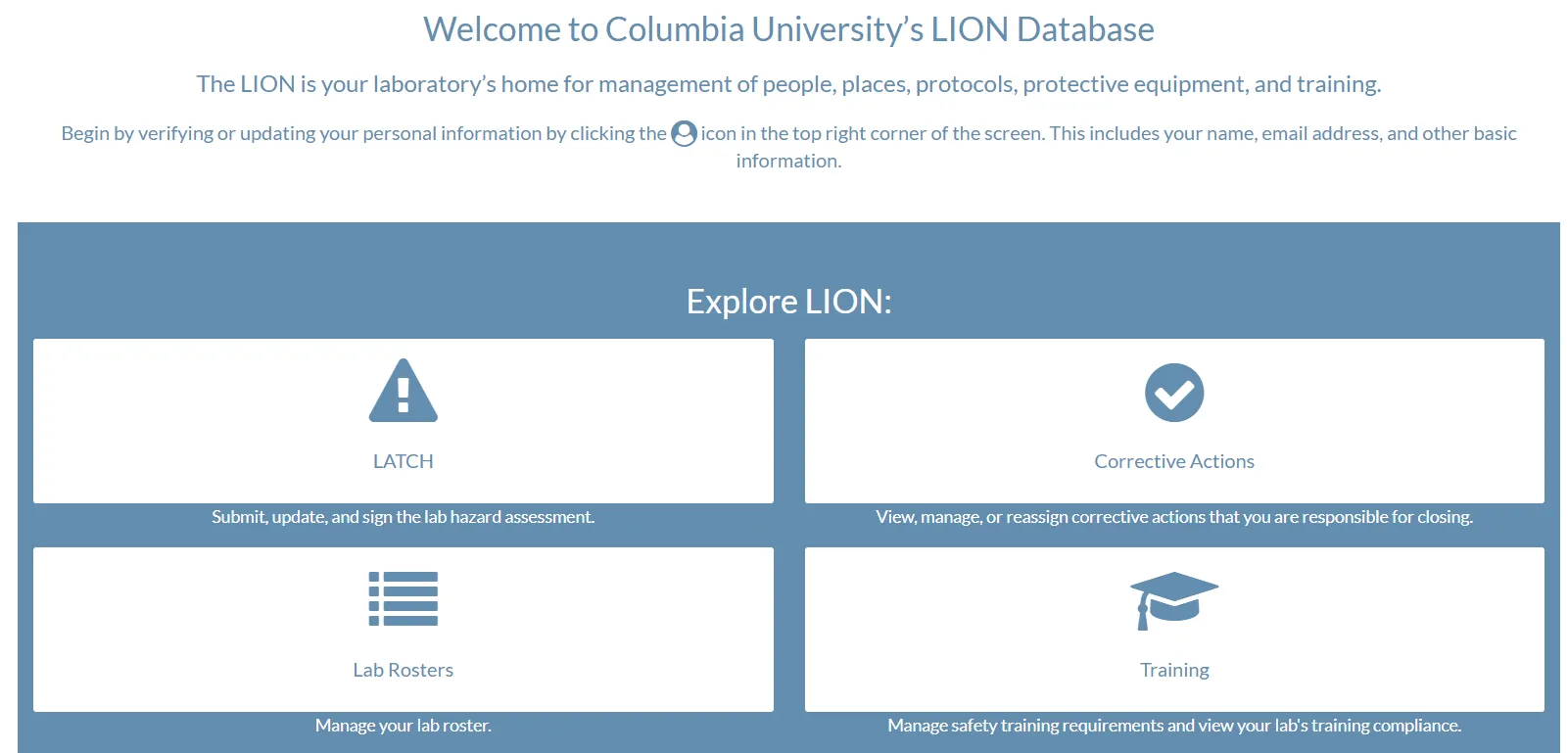
Laboratory Information Online Network (LION) is a web-based software platform, designed to simplify laboratory safety information management between the research community and supporting departments, including EH&S. Please click here to watch a video on how to log into LION and see the links below for specific instructions on various LION functions.
LATCH – Begin or update a hazard assessment, add personnel and spaces, update training information (Click here to watch the LATCH User Guide Video)
Corrective Actions – Respond to a corrective action notice following a laboratory survey (Click here to watch the Inspection Module video)
Personnel Roster
A labs personnel roster can only be edited by a lab member with the “Lab Safety Manager/Liaison” role in LION or directly by the Principal Investigator.
Sign into LION, click on “LATCH”, then select “Personnel”. Confirm the correct principal investigator name is listed. To add a new user, type in their name or UNI in the “Add user To Roster:” field and select “Add”. To remove a user, select the red trash icon to the right of the individual.
If you are trying to add a lab member but they are not coming up, the most likely reason is that they have not taken the required TC4951 Initial Lab Safety Training in RASCAL. Once this training is taken, they will appear in the drop-down list within 24 hours. If they still do not appear or if you believe this individual does not need the initial lab safety training, please contact [email protected]
Room List
A labs room list can only be edited by a lab member with the “Lab Safety Manager/Liaison” role in LION or directly by the Principal Investigator.
Sign into LION, click on “LATCH”, then select “Spaces”. Confirm the correct principal investigator name is listed. To add a room, search for the room in the “Search Room” field and select the correct room. Then, press “Add Room To List”. To remove a room, press the red trash icon to the right of the room you want to remove.
If you are trying to add a room and it is not appearing, first confirm that it belongs on your LION profile. Spaces that potentially have hazards present belong on your profile but spaces that don’t such as offices or lounges do not. If the space belongs in LION, please email [email protected] with the building, room number and a brief description of what the space is used for so we can add it to the system.
Emergency Contacts
A labs emergency contact information can only be edited by a lab member with the “Lab Safety Manager/Liaison” role in LION or directly by the Principal Investigator.
Sign into LION, click on “LATCH”, then select “Personnel”. Scroll down to “Emergency Contacts”. From here, if you want to add a new contact press “Add Phone Number” and fill out the fields as prompted. Press “Save” to save the record to the labs profile. If you want to remove a contact that is no longer valid, press the red trash can icon to the left of the individual’s phone number. Note: The contact(s) must be available 24/7 and should not include office lines.
LATCH Submission
- To view your labs in-progress LATCH assessment, sign into LION, select “LATCH”, then “Assessment”. If you have the lab safety manager/liaison role or are the principial investigator, you can continue an in-progress assessment, by selecting “Open” and pressing “Apply Filters”. Then select the assessment you would like to continue by pressing the blue arrow to the right of the record.
- To view a completed assessment, select “Completed” and press “Apply Filters”. If you are signing the assessment, press the blue pencil icon to the right of the assessment that you want to sign.
A lab can copy over their previous annual LATCH submission and use it as a starting point for their new submission. This can be done by any lab member with the “Lab Safety Manager/Liaison” role in LION or directly by the Principal Investigator. To do this, sign into LION, click on “LATCH”, then select “Assessment”. Select “New Assessment”, confirm the correct principal investigator name is listed, and press “Start”. If there is either an active submission or a previous submission, then a pop up will appear. Scroll to the bottom and under “Previous Assessments” select the overlapping paper icon found to the right of the assessment you would like to copy. Note: If copying a previous assessment, please take the time to review and make any edits for things that have changed over the course of the year.
Corrective Actions
You can view your assigned corrective actions in LION by signing into LION, clicking “Corrective Actions” and selecting “Open Actions”. Any open actions that have been assigned to you will appear here and you can act on them by pressing “Manage”.
If a corrective action has been assigned to you and you would like to reassign it, you must first find the action in LION. You can do this by signing into LION, clicking “Corrective Actions” and selecting “Open Actions”. Then, select, “Show Mine”. Any open actions that have been assigned to you will appear here and you can act on them by pressing “Manage”. From here, select “Reassign”. Find the individual you would like to reassign the action to by searching for their name or Columbia email address in the “Reassign To” field and provide an explanation for the reassignment in the “Reason for Reassignment” field. Finalize the reassignment by pressing “Reassign”.
You can view your labs corrective actions in LION by signing into LION, clicking “Corrective Actions” and selecting “Actions by Inspection”. Then, identify the survey you want to view the actions for and select “Report” to the right of the record. Initially you will see a condensed view with only actions listed. If you want the full survey results, select “View Full” in the top right.
Research Continuity and Campus Access:
To facilitate access during an emergency which requires campus restrictions, all PIs or their designees in LION, are required to update their roster in the system. Please see the following FAQs and answers associated with this task.
PIs, or their designees, are able to add their own lab staff to a roster; in cases where problems are encountered, EH&S can assist.
There are a few reasons why an individual might not be in LION and therefore available to be added to a PI’s roster:
o The individual has not completed any Rascal training, OR, they’ve only completed training within the last 24 hours. If they have never completed a training course in Rascal, they will need to do so before having an account in LION. If they have very recently taken a course, they should be available after each night’s data feed from Rascal to LION is complete.
o The LION personnel search tool is by name or UNI, not email address.
Occasionally this may cause issues in finding a specific person in the database.
• Log into LION
• Click on the “Personnel” tab to view a full list of the lab’s roster and their training compliance status
• Lab personnel: Initial and current refresher Laboratory Safety Training (TC2150, TC4951 or TC0950), if applicable
• PIs: Initial Laboratory Safety Training and refresher Laboratory Safety Training (TC2150, TC4951 or TC0950), if applicable, OR, Initial Laboratory Safety Training and PI Safety Culture training (TC6800)
The Office of the Executive Vice President for Research (EVPR) has created a webpage - https://research.columbia.edu/research-continuity - containing an overview of important information for research continuity planning.